Developer
Bugs, feature requests, open tasks, research links, and a clean packet when you need help on the exact slice of work you are in.
FAQ
root is meant to be understandable without a long onboarding sequence. This page covers what it is, what it is not, and how the capture, shaping, and handoff workflow works.
New to root? Start with the short Getting Started loop.
Browse by category or search for the exact thing you are trying to figure out.
No direct match yet. Try simpler terms like Inbox, Snippets, Open Tasks, root Connect, or Context Handoff.
The basics
What root is, what it is not, and when it makes more sense than a pinned doc or a general-purpose notes archive.
root is a private-by-default local workspace for working text. In the current public Chrome package it starts as a new-tab workspace, and it can also be used on demand when you prefer one stable root tab instead. The job stays the same either way: capture, shape, reuse, and intentionally share the text you are still working with.
People can absolutely use it like a simple notepad, but that is not the product center. root is designed more like a lightweight context workspace than a general-purpose notes archive. If you want the longer version of that distinction, read Working Text Is Not the Same as Notes.
That is a fair way to think about one part of it. If you already use Notepad, TextEdit, VS Code, or folders of .txt and .md files, root gives that plain-text habit a working surface. Drag multiple files in, see them together in one sidebar, edit them, turn lines into Open Tasks, save reusable bits as Snippets, and hand off the exact context when it is ready.
Yes. A new item can absolutely be used like a simple note. Think of an item more like a digital index card than a giant document: it is bigger than a line, smaller than a polished doc, and the right size for one thought, one project slice, or one reusable block of text.
Because root is built for handoff and active text, not just storage. It gives you Inbox, Quick Capture, Open Tasks, Snippets, and Context Handoff in one small local surface. A pinned doc or a notes app is still better when you want a polished long-form document, long-term archive, or broad collaboration. root is for the text before that point.
No. The current beta is local-first and does not require an account to use the workspace.
No. root is still useful if you never copy anything into an assistant. The same workspace is good for rough thinking, pasted research, reusable text, and project organization even if you keep everything local.
AI project memory is the working context you keep outside any one assistant: decisions, links, constraints, open questions, task lines, snippets, reusable prompts, and the rough project notes you may want to bring into ChatGPT, Gemini, Claude, a browser AI sidebar, a doc, or another person.
In root, that might be a project brief with current goals, a bug note with steps and source links, meeting prep with checklist lines, an about-me.md or project-context note you reuse, or saved prompt snippets that help frame a Context Handoff.
root does not manage agents for you. It gives the human a calmer Markdown-friendly place to keep the material before deciding what to share.
root is especially good for work that keeps turning into small pieces of working text: bug notes, script fragments, meeting prep, follow-ups, research links, assignment checklists, and reusable instructions.
Here is the kind of active text root tends to hold well before it turns into a finished doc or a bigger system.
Bugs, feature requests, open tasks, research links, and a clean packet when you need help on the exact slice of work you are in.
Hooks, script fragments, sponsor notes, and reusable prompt text without turning the whole thing into a giant content system.
Daily handoff, follow-ups, travel notes, and meeting prep that need to stay close at hand instead of buried in a bigger archive.
Lecture dump notes, assignment checklists, research links, and all the rough text that shows up before anything feels organized.
The workflow
The small parts that make root feel like a workspace instead of just another place to dump text.
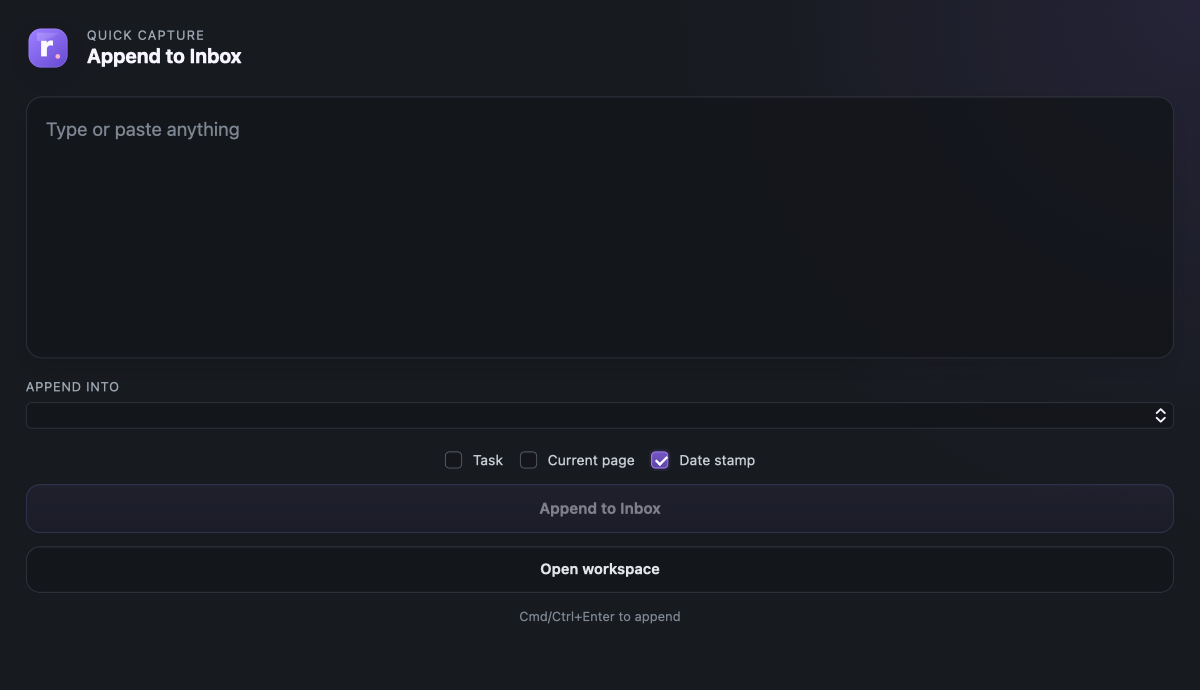
Quick Capture is the extension popup for fast intake. Type or paste into a small field and append it straight into Inbox. It can also turn the capture into task lines or include the current page link. The Append into list stays intentionally short: Inbox plus pinned items. If you want a note available there, pin it. For the calmer browser setup behind that flow, read A Better Browser Capture Workflow.
Yes. You can drag one or more .md or .txt files straight onto the workspace to import them. This is especially useful when you have several scratch files open and want to view, edit, task, and hand off the material together instead of bouncing between separate text editor windows. The Import menu also still works when you would rather choose files or a full export folder manually.
No. The cleanest setup is to choose one browser home on purpose. If you want root to be your main workspace, keep root on the new tab. If you prefer Chrome's default new tab or another start page, keep one bookmarked or pinned root workspace tab instead.
chrome://extensions.The cleanest current setup is to turn on Redirect new tabs in Quick Capture, open the workspace once, and then pin or bookmark that workspace tab. That keeps root available without multiplying workspace tabs every time you open a new tab or forcing it to compete with your usual browser home.
Inbox is the default landing spot for rough capture. It is where quick text goes first when you do not know where it belongs yet. If you want the philosophy behind that design, read Why Inbox Matters More Than Perfect Organization.
Open Tasks is a live rollup of unfinished checklist items from across active items. It is not a separate task database. It reflects markdown-compatible task lines already living in your workspace. If you want the longer version of why that matters, read Why Open Tasks Is Not a Task Manager.
Use tags as lightweight labels, not rigid folders. Good tags usually describe a role, project, state, person, or use: #school, #website, #waiting, #client, or #handoff. If you want examples, read How to use tags in root.
Clean View is a more readable rendering of the same note. It keeps the underlying plain text and markdown-compatible structure intact, but shows bullets, tasks, strike, links, and date stamps in a cleaner reading mode.
root keeps the main editor intentionally minimal. The core tools are Clean View for reading, Tidy paste for cleaning rough pasted text, bullets, tasks, date stamps, and snippets. That is enough structure to shape messy working text without turning root into a full document editor.
Tidy paste is for copied text that brings awkward spacing, extra blank lines, or broken line breaks with it. It does not summarize, rewrite, or send anything to AI. It only tidies the text already in the item.
Links only changes the output so you share the matching URLs without all the surrounding notes. It is useful when the references are the real payload and the extra commentary would only add noise.
Snippets are reusable text blocks that live in their own view instead of cluttering the main item list. Save selected text as a snippet, then insert it later when you need repeated instructions, bios, tone guidance, project boilerplate, or prompt fragments. In Context Handoff, saved prompt snippets can also be added at the top of the packet before you copy or share it. If you want a public starter set, see Starter snippets for messy work.
Yes. Snippets are a lightweight way to keep reusable prompts, repeated instructions, tone guides, and prompt fragments without turning root into a heavy prompt-management system. If you want a simple local prompt library, Snippets are a good fit. One of the most useful current patterns is to save prompts there, then use the Add prompt control inside Context Handoff to frame a packet before it leaves root. For a public starting point, see Starter snippets for messy work. For a fuller walkthrough, read How to Build a Personal Prompt Library Without Making a Mess.
Context Handoff lets you preview and copy a clean packet from the current item, selected items, a project tag, pinned context, or open tasks. You can also add a saved prompt from Snippets at the top, which makes it easier to hand off not just the context, but the exact framing for what you want next. Nothing is sent automatically. You inspect it first, then copy it where you want. If you want the broader thinking behind smaller packets, read Copy Less Context, Get Better AI Help.
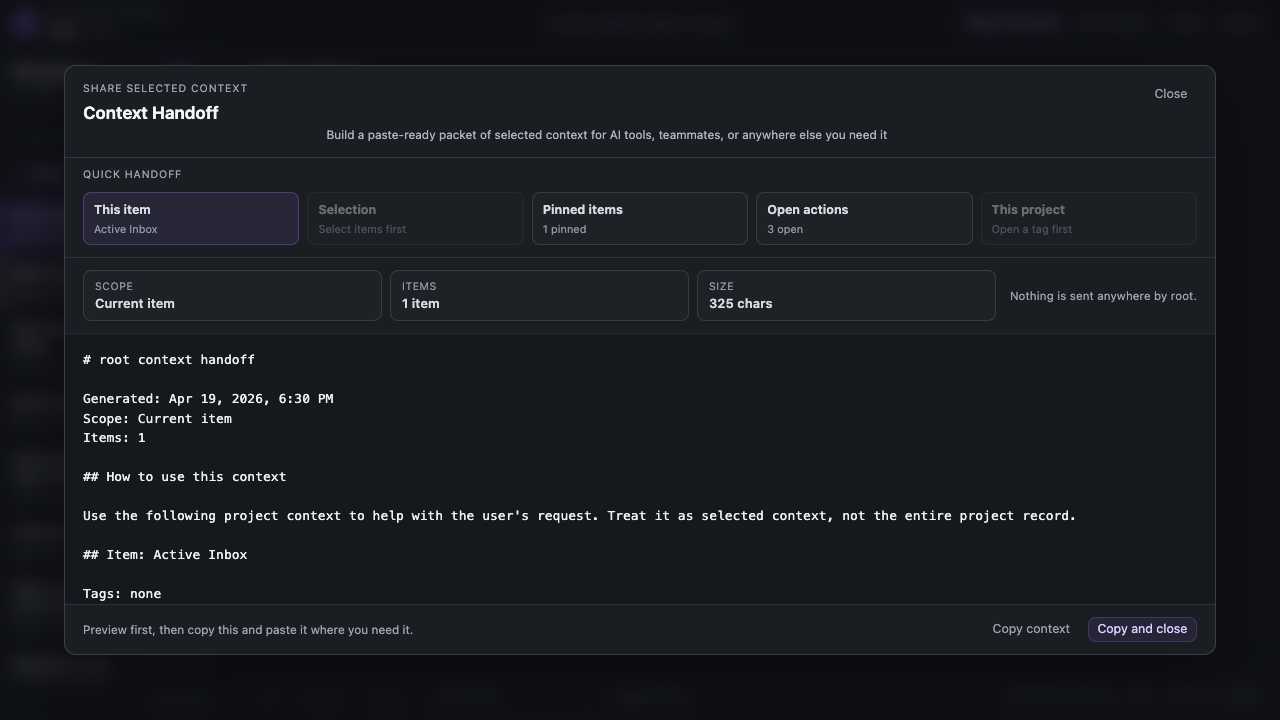
Context Handoff is where you choose the scope, preview the packet, and decide exactly what gets copied or shared. It is intentionally a separate step so root can stay explicit about what leaves the workspace.
root Connect
The connected workspace layer for using root on Chrome and iPhone with the same working text.
root Connect lets root on Chrome and iPhone use the same workspace through a Google Drive file you own. It is for people who want quick capture on mobile and deeper working-text editing on Chrome without treating root as a hosted account.
The core idea is simple: root stays local-first, and root Connect gives those local workspaces a shared bridge when you choose to connect them.
root Connect keeps the useful parts of your root workspace available across connected devices: items, Inbox, task lines, tags, snippets, Archive, and Trash state. Open Tasks is still a live rollup from task lines, so when task lines move between devices, Open Tasks updates too.
It is built for working continuity: capture a thought on iPhone, update, then keep shaping it in Chrome; or clean up a note in Chrome, update, then have it with you on iPhone.
No. root Connect uses a root workspace file in your Google Drive. root does not run a hosted workspace account, and root is not storing your notes on a root server.
Google Drive is the bridge. Your local root apps read and write the workspace file after you connect and grant access.
No. root on Chrome can be used locally without root Connect, without Google Drive, and without a root account. root Connect is for the connected Chrome-and-mobile workflow.
Update is the normal root Connect action. It sends local changes that are ready to back up, checks Google Drive for newer workspace changes, and applies what can be merged safely.
root uses Update instead of hiding everything behind invisible sync language because the trust moment matters. You should be able to see when the workspace is being connected and when it has finished.
If root cannot merge changes safely, it keeps a separate Version Conflict item instead of silently overwriting work. The point is not to make conflicts feel exciting; it is to make them recoverable and understandable.
The safer habit is still simple: Update before switching devices, and avoid editing the same item in two places at the same time.
No. root Connect is for workspace continuity across root surfaces. It is not a full backup system, file history product, or account recovery service. Keep normal device and Google account recovery habits in place.
root Connect needs permission to work with the root files it creates or opens in your Google Drive. The goal is narrow access for the workspace bridge, not broad account access.
On Chrome, the local-only root workspace remains separate from the connected root package. The connected package asks for Drive access when you use root Connect.
Start with one device, then add the second. Install root on Chrome, install root on iPhone, connect root Connect, run Update, and confirm the same simple test note appears on both sides. After that, test Inbox, Open Tasks, Archive, Trash, and a normal edit round trip.
root for Codex beta
A separate beta workflow for saving useful Codex work as local Markdown notes, tasks, briefs, answers, and project memory.
root for Codex is a beta workflow for turning useful Codex work into local Markdown notes you can find, continue, and ship from. The current skill set is: Save as Note, Add to Note, Find Notes, Extract Tasks, Resume from Notes, Project Memory Packet, Create Brief, Answer from Notes, Ship Check, and Organize Note.
It is a separate feature from root Connect. The Codex plugin does not need a root account, a root server, Google Drive, iPhone, or root Connect to be useful. During beta testing, installation happens through an approved root download or local Codex plugin source. The setup uses a folder named Codex notes. The optional desktop bridge can import Codex notes into root Chrome Beta after selecting that folder, and Disconnect Codex folder clears that browser permission without deleting imported notes.
Read the beta page at root for Codex.
Still deciding?
If your question did not fit neatly into the FAQ, try Support for troubleshooting, or Privacy and Security for data and permissions.