Support
Get unstuck in root
root is intentionally small, so support should feel straightforward too. Start with setup, recovery, or troubleshooting, then reach out if something still feels off.
Jump straight to install, backup, recovery, or troubleshooting.
No direct match yet. Try simpler terms like install, export, backup, or extension.
Install and setup
Install and setup
Get root installed, make sure the workspace is really working, and decide whether you want it on every new tab or in one stable tab.
Chrome Web Store Install root workspace
-
How do I install root and know it worked?
Install root from the Chrome Web Store listing, then open a new tab. If root appears as the workspace, the core install worked.
- Choose Add to Chrome and finish the install.
- Open a new tab and confirm root appears.
- Pin the extension if you want Quick Capture easy to reach from the toolbar.
-
Already installed root?
Use Getting Started for the short first-run loop: open a new tab, pin root in Chrome, try Quick Capture, and keep one manual export outside the browser.
-
What should I choose if Chrome asks whether to keep root on the new tab?
Pick one browser home on purpose. If you want root to be your main workspace, keep root on the new tab. If you prefer Chrome's default new tab or another start page, keep one bookmarked or pinned root workspace tab instead of trying to run both at once.
Choose one main home: let root own new tabs, or keep your usual start page and park one root tab. - Preferred root-first setup: keep root on the new tab and use the extension popup for fast intake.
- Preferred one-tab setup: turn on Redirect new tabs, open the workspace once, then pin or bookmark that one root tab.
- In our Chrome testing, choosing the default new tab there can disable root in that browser, which makes the toolbar icon disappear until you turn root back on in
chrome://extensions.
-
Why did Chrome show “Proceed with caution” before install?
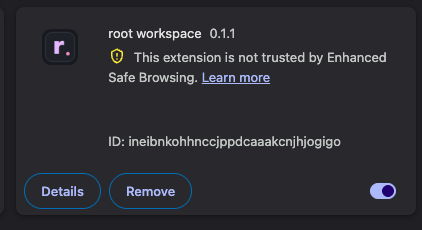
Some Chrome users with Enhanced Protection enabled will see a caution prompt for newly published extensions that are not trusted by that reputation system yet. That does not mean the listing is broken. It usually reflects new-developer or new-extension trust age more than anything specific to root.
- The normal new-tab permission prompt is still expected because root replaces the new tab page.
- The current public Chrome package requests one narrow permission:
activeTab. - Those trust prompts should calm down over time if the extension stays compliant and in good standing.
- If you want the exact breakdown, use the Security & Permissions page.
-
How do I keep one stable root tab instead of using it on every new tab?
Open Quick Capture, turn on Redirect new tabs, then use Open workspace once and pin or bookmark that tab. That gives you one stable root surface without asking Chrome to make root your default new tab home.
-
What happens if I install another new-tab extension?
Pick one new-tab owner. If another extension takes over new tabs, use root as one stable pinned or bookmarked workspace tab instead. In our Chrome testing, switching back to the browser default or another new-tab extension can also flip root off, so check
chrome://extensionsif the root icon suddenly disappears.
Backup and recovery
Backup and recovery
root is local-first, so backup habits matter. The current public Chrome package surfaces that more clearly with a Last backup control and a small Workspace health view inside the app.
-
How do I back up or move my library?
Open Last backup in the top bar, then use Export library. That same menu also holds the import paths when you want to bring content back in. If you want to move content between machines or browser profiles, export first, then import on the other side.
The current Web Store package does not include cloud sync. If you keep the export in a cloud folder or another location outside the browser, that is a manual backup you chose outside root.
-
Where do I see backup status or Workspace health?
Use the Last backup control in the top bar. It shows whether you have never exported or how long it has been since the last full backup. The same menu opens Workspace health, which gives a quick local summary of items, snippets, open tasks, trash, and storage so you can sanity-check the workspace before a cleanup or move.
-
What do Archive, Trash, and Version do?
- Archive hides items without deleting them.
- Delete moves items into Trash first.
- Version helps recover recent local snapshots for an item.
-
Can I import or drag files into root?
Yes. You can import by menu or drag one or more
.mdor.txtfiles straight onto the workspace. Drag-and-drop is best when you have a small set of loose scratch files and want to see them together in root.- Drag in multiple files at once.
- Use the sidebar to move between them without opening separate text editor windows.
- Edit the text, pull out checklist lines in Open Tasks, save reusable bits as Snippets, or use Context Handoff when you need to share the exact slice.
-
What can wipe a local-first beta?
In the current public Chrome package, root lives in browser storage. If you clear browser site data, reset Chrome, delete the browser profile, or do a full cleanup without exporting first, the local workspace may be deleted.
Safety first
Keep one full export outside the browser
Treat backup like a normal habit, not a panic button. The app now shows backup status inside root, but the safest move is still to keep one full export in a place you already trust outside the browser.
- Export once a week or after important work.
- Export before a browser cleanup, profile move, or big reorganization.
- Keep at least one full export outside the browser so the workspace is not living in only one place.
Troubleshooting
Troubleshooting
The small fixes that solve most beta issues without a dramatic reset.
-
What should I try if the extension looks stale after an update?
Reload it from
chrome://extensions. If that still looks off, close the stale root surfaces and reopen the workspace cleanly. -
Why is Current page unavailable sometimes?
Some internal Chrome pages, such as
chrome://extensionsandchrome://settings, do not expose the same page information that normal websites do. On those pages the Current page option may be unavailable. -
Does root have built-in voice dictation?
No. Use your operating system's built-in dictation wherever your cursor is in root. On Mac, use the Dictation shortcut you set in Keyboard settings. On Windows, press Windows logo key + H.
-
Does root work in Incognito?
Not as your main workspace. Chrome can require explicit permission for extensions in Incognito, and Incognito windows are temporary by design. root is safer in a normal browser profile where the local workspace persists.
-
Why does a context bundle feel too big?
Use a smaller scope, turn metadata off, or try Links only when the references are the real payload. The handoff is usually better when you narrow it before you copy.
-
What should I avoid while testing?
- Avoid editing the same item in multiple root tabs at once.
- Export before switching profiles or machines.
- Do not assume a browser cleanup will spare local extension data.
-
What should I send in a support email?
Tell us what happened, what browser you were using, and the last thing you clicked before the problem showed up. If the issue involved Context Handoff, Quick Capture, or an import/export step, say that too.
Still stuck?
Need help from a person?
Email [email protected] and include the browser, what happened, and the last thing you clicked before the problem showed up.